
Event overview
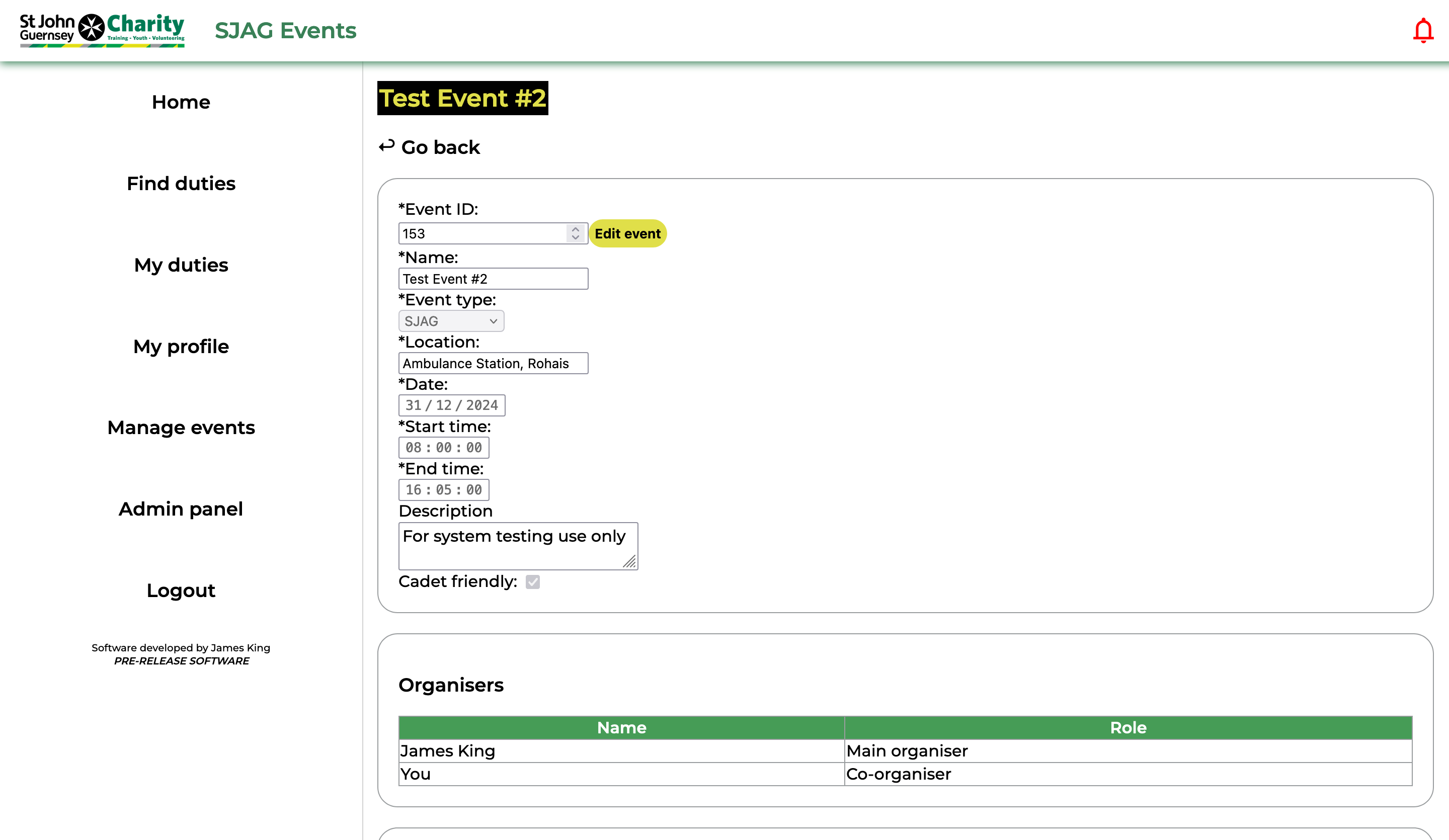 |
The event overview page displays all the information about an event stored on the system.
The first box displays basic information about the event itself, such as the date, posted start and end times, location, and a short description.
The second box lists all the users who have been marked as event organisers for this event. These are the people responsible for the listing of the event on the site and the approval of all duty bookings for it. Click on the user will open your default mail client, with a new email addressed for that user. |
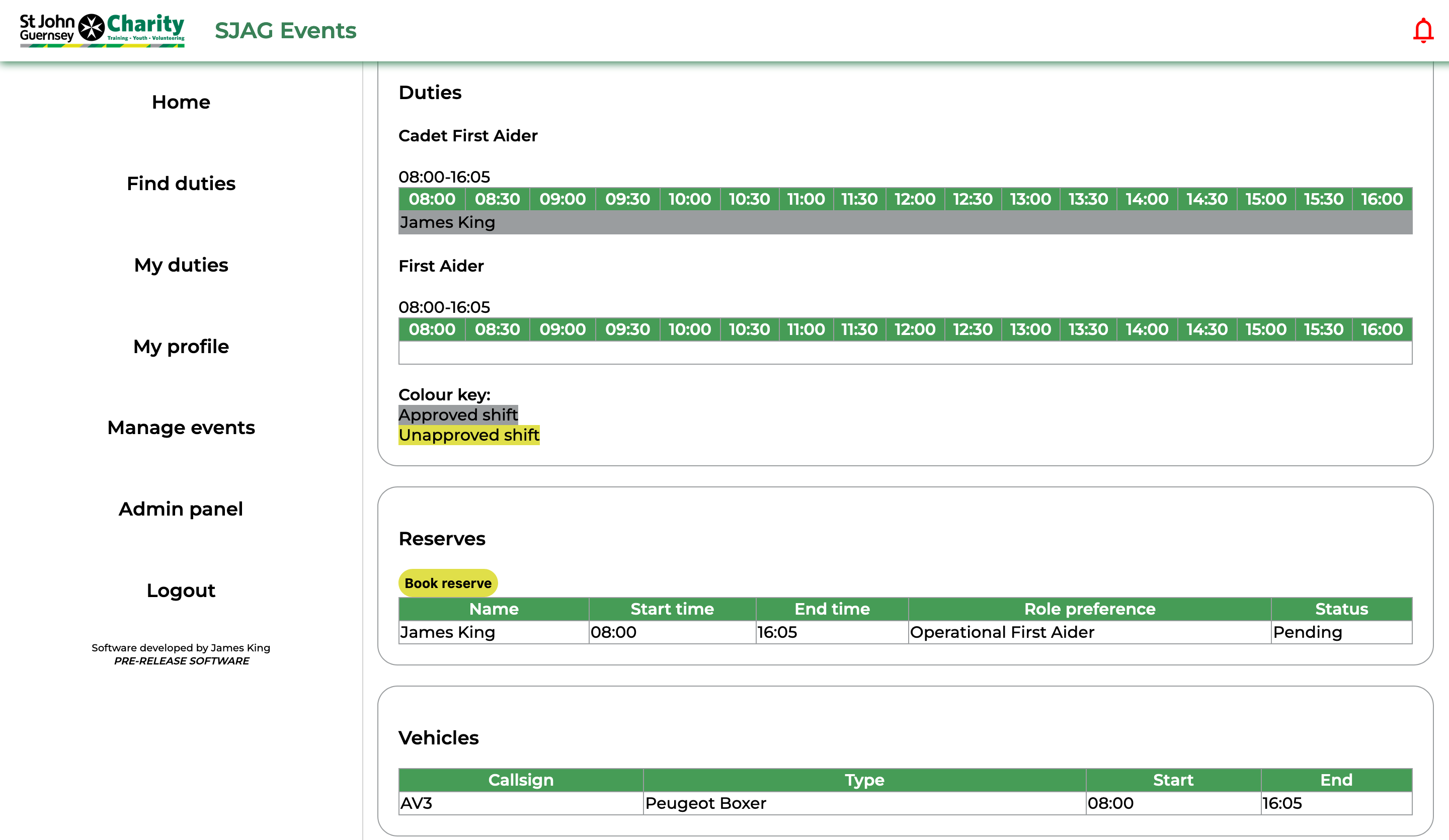 |
The third box shows all the duty requirements for that event, with each requirement having its own timeline. Duties that are booked for that requirement are displayed on the timeline, indicating at a glance what times need to be covered. Bookings that have been approved by an event organiser are displayed on a grey background, and unapproved duties on a yellow background.
Where the user has the correct role to book onto a requirement, a yellow 'Book duty' button will be shown, click this to create a new booking for the duty.
To view or edit a duty you have booked, simply click on the duty in the timeline.
The fourth box displays all the reserve bookings that have been made for that event. To create a new reserve booking, click the 'Book reserve' button. To view or amend an existing reserve booking, click on the row in the table. The final box shows the vehicles that will be used at the event. |
No comments to display
No comments to display